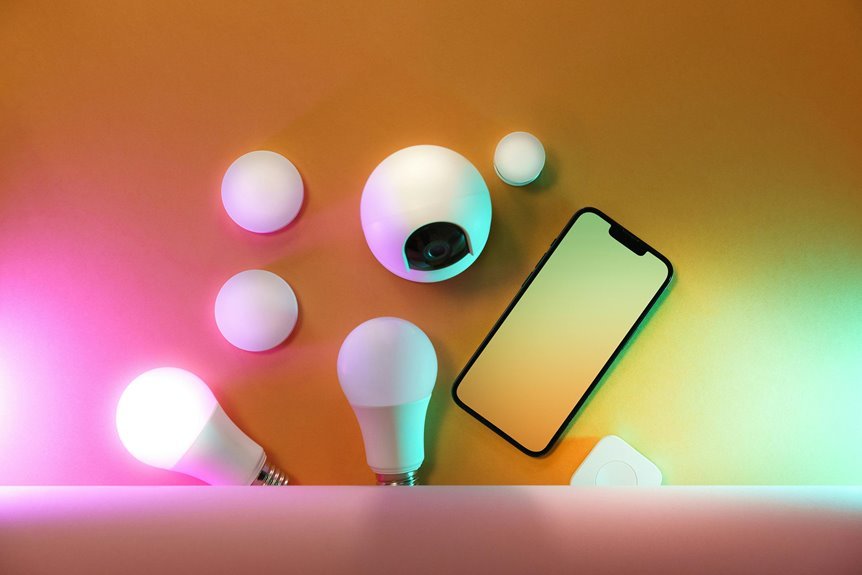
Yes, Govee lights work with Apple Home, though not all models connect natively out of the box. You have three options: use Siri Shortcuts for voice control without extra hardware, pair Matter-enabled models directly to Apple Home for smooth integration, or set up a HOOBS bridge to add unsupported devices. The method you choose depends on which Govee light you own and how much HomeKit integration you want.
Do Govee Lights Work Natively With Apple Home?
they don’t always play nicely together right out of the box. Not all Govee models come with native HomeKit integration, which means you can’t automatically add them to your Apple Home setup. I know it’s frustrating when you’re hoping for seamless control. However, some newer Govee devices do support Matter, which can make Apple Home connection smoother and more reliable. Before buying, you’ll want to check your specific model’s specifications carefully. If your lights lack native HomeKit support, don’t worry; third-party bridges exist to help you out. Understanding what you’re working with upfront saves you headaches later.

Next-Gen COB Technology: Govee LED strip lights are crafted with integrated packaging technology and 1260 LEDs/m, translating innovative tech into brighter, smoother, fluid lighting effects, can be used as supplementary lighting.

RGBICWW Technology & Upgraded Illumination: Enjoy multi-color displays, 500lm brightness (higher than previous models), and adjustable 2700k-6500k warm/cool whites. With Upgraded Illumination and Design, a pure visual feast whenever the smart table lamp is turned on.

16 Million DIY Colors: Govee smart light bulbs own millions of color and 54 preset scene modes, you can explore your favored one or pick one suits your moods most, bringing yourself a real fantastic lighting experience(Working Voltage: AC 120V).
Choose Your Integration Method: Shortcuts vs. Matter vs. HOOBS
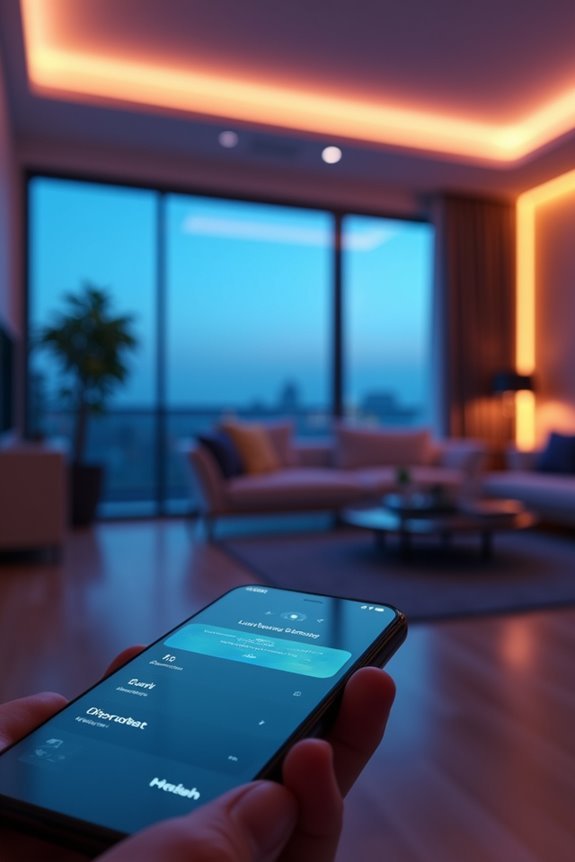
You’ve got three solid paths forward, and each one works differently based on your needs. If you want the quickest route with minimal setup, Shortcuts let you tap a button in the Govee app to trigger scenes and link them directly to Siri—no additional equipment required. For more integrated control, Matter-compatible Govee devices connect directly to Apple Home, giving you unified control across your entire setup. If your lights aren’t Matter-ready yet, you can set up a bridge like HOOBS that acts as a middleman, installing the Govee plugin to translate everything into HomeKit language.

LED Strip Lights for Indoor Lighting: Bedroom decor, gaming led lights, or dorm room decor these led WiFi lights install easily and discreetly, lighting effects perfect for holiday decorations; includes a power cord, plug, and mounting clips

LED Strip Lights for Indoor Lighting: Bedroom decor, gaming led lights, or dorm room decor these led WiFi lights install easily and discreetly, lighting effects perfect for holiday decorations; includes a power cord, plug, and mounting clips
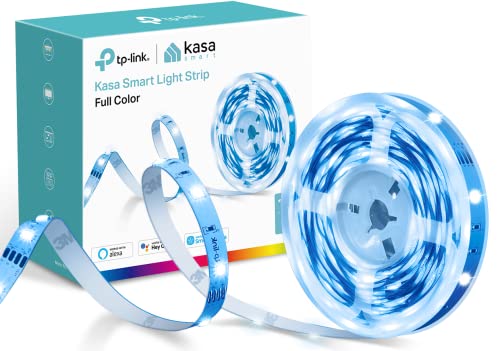
[High brightness & saturation] The 16.4ft LED light strip features customization up to 16 million colors with high brightness & saturation for the best lighting throughout your home.
Shortcuts For Quick Control
How’d you like to control your Govee lights with just your voice? I’ll show you the easiest path: Siri Shortcuts. You can jump into the Govee app’s Tap-to-Run section and assign custom actions to spoken commands. Want your strip lights glowing blue? Create that scene in Govee, add it to Siri, and boom—you’re controlling them hands-free. It’s seriously that simple, no fancy Matter integration needed. You’ll join plenty of users who’ve ditched the button-tapping habit. Shortcuts work great for quick commands, though they’re less native than Matter integration would be. Still, they’re accessible, reliable, and get the job done without extra hardware or complicated setups. Give it a shot, and you’ll wonder why you didn’t start sooner.
Matter Protocol Direct Connection
Ready to move beyond simple voice commands? Matter protocol direct connection provides seamless HomeKit integration. When your Govee lights support Matter, you’re connecting them straight to Apple Home through a compatible bridge—think of it as a translator helping your devices speak the same language.
What you need to know: your lights should sit on a 2.4 GHz network with IPv6 enabled, and keep everything on the same LAN. You’ll gain native Siri control, automations, and full integration with the Apple ecosystem. If your device isn’t Matter-enabled yet, a HOOBS bridge fills that gap, exposing your Govee accessories to HomeKit with minimal setup, giving you fuller feature access than Shortcuts alone.
HOOBS Bridge Setup Option
If you’re seeking a more hands-on way to connect your Govee lights to Apple Home without waiting for Matter support, HOOBS bridge might be your answer. It’s suitable for folks wanting full HomeKit integration right now, rather than waiting.
| Step | Action | Result |
|---|---|---|
| 1 | Install Govee plugin on HOOBS | Bridge gets Govee support |
| 2 | Restart HOOBS system | Changes take effect |
| 3 | Add Govee accessories to HOOBS | Devices appear in app |
| 4 | Add HOOBS bridge to Apple Home | HomeKit control enabled |
With this setup, you’ll control your Govee lights through HomeKit, use Siri commands, and create scene-based automations across all your devices. HOOBS acts as a translator between Govee and HomeKit, letting you integrate your smart home now rather than waiting for native support.
Control Govee With Siri Shortcuts
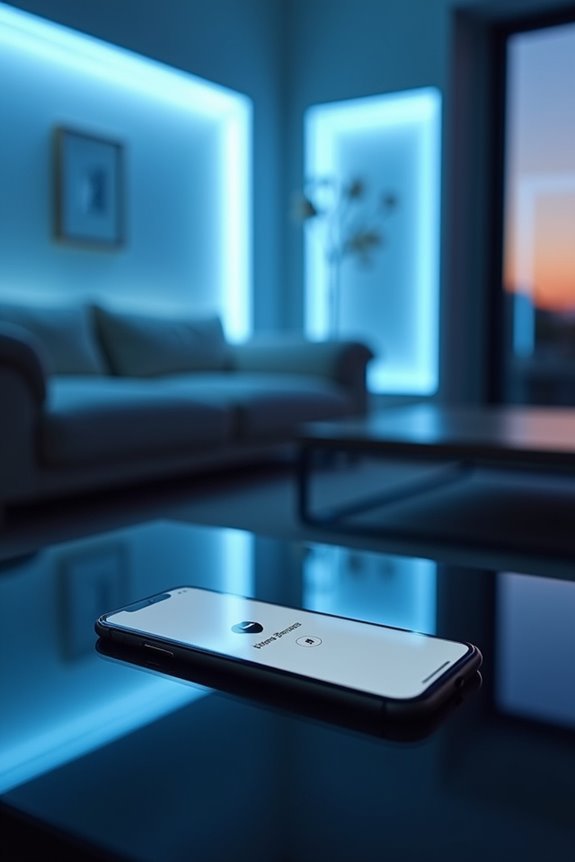
I’ll show you how to set up Tap-to-Run commands in the Govee Home app—it’s the most straightforward way to get Siri talking to your lights without extra steps. Once you’ve created your custom action (like “brighten the bedroom” or “movie mode on”), you’ll tap “Add to Siri” and record a voice phrase that’ll trigger everything when you say it out loud. The best part? You’re not limited to simple on-and-off stuff; you can layer multiple adjustments together, so one command does exactly what you want.

Segmented Multi-Color Technology: Our special RGBIC tech allows for more than one color to be displayed on this led strip lights simultaneously, for lighting that is more vibrant, dynamic, and customizable for back to Holiday decorations.

Exciting Lighting Experience: Adopts innovative RGBICWW technology to display rainbow-like light effects created from 16 millions colors. Boost your gaming experience with dynamic presets or make your own light effects with DIY mode.(Recommended for monitors that are less than 45 inches.)

Upgraded Govee Envisual Technology: The upgraded chip provides stronger performance with a fish-eye correction function, expanding the effective range to provide more accurate color-matching along the edges.
Setting Up Tap-to-Run Commands
Want to control your Govee lights with just your voice? I’ll show you how to set up Tap-to-Run commands, which are the easiest way to get started. First, open your Govee Home app and head to the Smarts section—that’s where you’ll find the controls. Create a custom scene, like turning your strip lights blue or dimming everything for movie night. Next, tap “Add to Siri” and record your voice phrase (something simple like “movie time” works well). Here’s what’s important: you don’t need HomeKit compatibility for this. Govee’s own Siri Shortcuts integration handles everything. Once you’re done, just say “Hey Siri, [your phrase],” and your lights respond instantly. No app opening required. That’s Tap-to-Run control in action.
Creating Custom Voice Automations
So you’ve mastered the basic Tap-to-Run commands—nice work—but what if you want to go further with Siri Shortcuts? Here’s where the possibilities expand. You can create custom voice automations by linking Govee scenes directly to personalized Siri phrases. Just set up your scene in the Govee app, assign it a unique command like “Hey Siri, Movie Time,” and activate hands-free control. If your device isn’t HomeKit-compatible, don’t worry; HomeKit bridging through tools like Homebridge opens up options. You’ll need a continuously running host (think Raspberry Pi or computer), but it exposes your Govee commands to Siri. Your shortcuts are limited to existing Govee commands rather than custom scripting, yet the flexibility still lets you build voice automations that work with your lifestyle and give you direct control over your devices.
Pair Govee Matter Lights in Apple Home
Getting your Govee Matter lights working with Apple Home is straightforward and takes just a few minutes. First, reset your light by holding the power and middle buttons three times quickly until it flashes—that’s your signal you’re ready to go. Next, open Apple Home, tap the plus sign, select Add Accessory, and scan the Matter QR code from your power cord. No QR code handy? Just choose More Options and enter the Matter code manually. After pairing succeeds, reconnect to Wi-Fi through your light’s settings, then verify the Matter connection. Make sure your router has IPv6 enabled and everything’s on the same network. Your smart home pairing is complete.

Matter Compatible: This is Govee's first Matter light bulb, which works with Matter, Alexa & Google Assistant for unified matter smart home control. Manage these Matter smart bulbs via 2.4 GHz WiFi/Bluetooth from anywhere using the Govee App. Create schedules, groups, and voice commands effortlessly. (2.4GHz Wi-Fi only)

Dynamic RGBIC Color: Unleash your creativity with Govee RGBIC technology, you can customize each segment color base and the floor lamp will display multicolor effects simultaneously, suitable for decorations and family gifts.

16 Million DIY Colors: Govee smart light bulbs own millions of color and 54 preset scene modes, you can explore your favored one or pick one suits your moods most, bringing yourself a real fantastic lighting experience(working oltage: AC 120V).
Bridge Govee to HomeKit With HOOBS
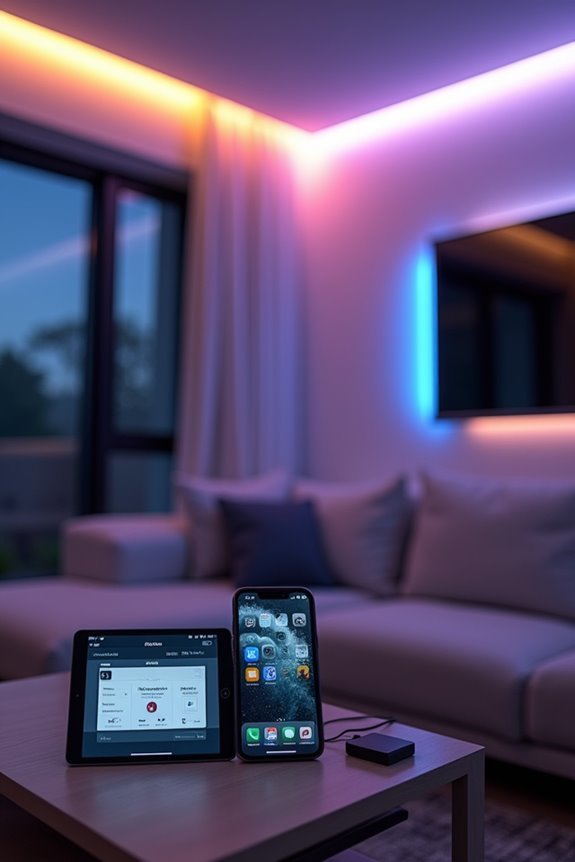
What if there’s another way to connect your Govee lights to Apple Home without needing Matter compatibility? HOOBS makes it possible. Here’s how: first, install the Govee plugin in your HOOBS system, then restart it. Next, add the HOOBS bridge as an accessory in Apple Home using your HomeKit setup. The important part—configure that Govee plugin by entering your Govee account details and picking which devices you want HomeKit to see. Once you’ve done that, your Govee lights show up in Apple Home, ready to control and automate alongside everything else. Just keep your Govee devices, HOOBS server, and iPhone on the same network, and the setup works as intended.

Important Note: This bulb is 6.27 inches long. Please confirm if it is compatible with your light fixture. Plus, do not use this bulb with a dimmer switch to ensure stable, flicker-free lighting and prevent damage.

Millions of Color Choices: Govee smart light bulbs offer millions of colors and over 50 preset scene modes. Customize your home with vibrant color accents, or choose cozy light colors for reading and relaxation.

Softer Material: Our new Neon Rope Light features a 14% more flexible, softer material than its predecessor, with a compact design and lighter weight for effortless room decorating.
Configure Govee Devices in Apple Home
Now that you’ve got your HOOBS bridge set up, let’s get those Govee devices talking to Apple Home—and I’ll walk you through the Matter protocol setup, the pairing process itself, and some Wi-Fi tricks that’ll help you avoid common problems. You’re basically telling your iPhone and your Govee lights to recognize each other, which sounds fancy but really just means scanning a QR code (or entering a code if that QR decides to be difficult) and making sure everything’s on the same network. Once you complete these steps, you’ll have your lights responding to Siri commands quickly.

Diverse Lighting Effects: 100+ preset scene modes on Govee Home APP, you can curate the ideal lighting to fit any even more vast suite of preset scenes to suit any holiday, entertainment, and daily lighting needs occasion. Enjoy your lights using easy voice control with Matter, or Alexa and Google Assistant.

[300 Addressable LEDs] Watch multiple colors appear all at once along your addressable lightstrip for a stunning gradient effect with 50 color zones and LEDs per meter.

Smart RGBIC Effects: RGBIC LED Strip lights for bedroom display multiple colors on one line at a time compared with traditional RGB lights. A colorful combination of LED strip lighting for bedroom brings a strong visual impact. (Not Support Alexa)
Matter Protocol Setup Steps
The bridge between your Govee lights and Apple Home is the Matter protocol, and it’s straightforward once you know the key steps. First, reset your Govee device by holding the power and middle buttons three times quickly—that puts it in pairing mode. Then, grab that Matter code from the white sticker on your power cord (or find it in the app), and head into Apple Home. Tap the plus sign, scan the QR code, and follow the on-screen prompts. You’ll reconnect Wi-Fi through the light’s settings, confirm your home network password, and complete the connection. Just make sure all your Matter devices stay on the same hub ecosystem, because switching things around means resetting everything again.
Apple Home Pairing Process
Once you’ve reset your Govee light and it’s ready, follow these steps to pair it with Apple Home:
- Open Apple Home, tap the + sign, and scan the Matter QR code on your light’s power cord
- If there’s no QR code available, select More Options → My Accessory Isn’t Shown Here → Enter Code instead
- Type the 11-digit Matter setup code and follow the on-screen prompts to complete pairing
- Make sure your iPhone and Govee light share the same Wi-Fi network, with Bluetooth enabled during setup
Once pairing is complete, your device appears in Apple Home for control and automation. If pairing fails, reboot your router and light, then retry.
Wi-Fi Configuration and Troubleshooting
How do you keep your Govee lights connected and working smoothly in Apple Home? Follow these steps, as staying connected helps integrate your devices into your smart home setup.
After pairing, reconnect your light to Wi-Fi through Settings by tapping Setup Wi-Fi and confirming your Matter connection. Here’s what helps most:
| Issue | Solution | Result |
|---|---|---|
| Connection drops | Reboot router and device | Stable HomeKit link |
| Network problems | Use 2.4 GHz band | Better Wi-Fi configuration |
| Missing IPv6 | Enable on router | Matter works properly |
Keep all devices on the same 2.4 GHz network during setup—this improves connectivity and reduces setup complications. Can’t scan the QR code? Use the Enter Code option with your Matter setup code from the power cord.
Automated Scenes: Real Govee + Apple Home Examples
Why settle for controlling your lights one at a time when you can set up scenes that do the work for you? Connecting Govee lights through Matter or Homebridge opens up possibilities for HomeKit automations that simplify your day.
Set up HomeKit scenes with Govee lights through Matter or Homebridge to automate your entire home’s lighting with a single command.
Here’s what you can set up:
- Morning Light Routine—Govee strips gradually brighten before your alarm
- Movie Night Mode—lights dim automatically when Apple TV turns on
- Bedtime Scene—all connected accessories power down with one command
- Work Focus—specific brightness levels activate during calendar events
The benefit? Your Govee lights share state with other Matter-enabled devices, meaning scenes work seamlessly across brands. It’s like having an assistant orchestrating your entire home’s mood without lifting a finger.

A Symphony of RGBIC Lighting: Govee RGBIC technology realizes the color segmentation display of the TV lights behind, creating more dynamic and gorgeous lighting effects. Experience more vibrant colors in your TV lights and upgrade your visuals.

Created For 45-70 Inch TV: Bring your entertainment, movies, and gaming to life with the Govee RGBIC TV Light Bars. Use with the Govee Home App to control your light bars remotely or brighten your walls with preset scene modes and music modes.

Smart RGBIC Effects: RGBIC LED lights for bedroom display multiple colors on one line at a time compared with traditional RGB lights. A colorful combination of LED strip lighting for bedroom brings a strong visual impact. (Not Support Alexa)
Why Your Govee Lights Dropped Off (and How to Fix It)
Nothing’s more frustrating than reaching for your phone to dim the lights and discovering they’ve vanished from your Home app—but don’t worry, here’s how to fix it.
First, check that your Matter hub and 2.4GHz network are actually on, because these are the usual culprits. Make sure IPv6 is enabled on your router too. Next, reboot both your router and Govee device, then re-run the pairing using the Matter code on your power cord sticker or in the Govee app.
Verify your Govee light sits on the same network as your HomeKit setup. If it still won’t cooperate, consider whether it supports Matter natively; if not, you’ll need a bridge like HOOBS. Finally, reconnect Wi-Fi in your light’s settings and confirm HomeKit connectivity to restore full control.

Smart App and Voice Control: Govee wall decorations indoor Light Bar adjust RGBIC Gaming Lights hands-free via Alexa and Google Assistant. Bluetooth and WiFi control colors, brightness, and scene effects on the Govee Home App. Note*: Please connect ALL the bars before plugging in the power.

Softer Lighting Effects for Cooler Accents: Govee LED Strip Lights with Cover are designed with 60 LEDs/m to create softer, uniform, and spot-free lighting effects. Includes an LED Channel, making it ideal for decorative and accent lighting.

Premium Color Accuracy: Powered by LuminBlend+, these Govee Smart Light Bulbs deliver superior color consistency across all brightness levels. Experience true-to-life colors with every adjustment, from subtle ambiance to brilliant illumination.
Which Govee Models Support Each Integration Method
Since not every Govee light works with Apple Home in the same way, here’s which models work with what—because it’d be simpler if they all just worked together right out of the box.
What works:
- Matter support – M1 Strip Lights (both 2m and 5m versions) with their special control box connect directly
- Native HomeKit – Certain Govee devices join Apple Home through the Govee app, though not all models qualify
- Govee bridge solutions – HOOBS, Homebridge, or ATH Bridge let you add unsupported devices and control them with Siri
- Tap-to-Run Shortcuts – Quick Siri commands work for supported devices without needing extra hardware
The key? Check your specific model first, then pick your bridge option.

Upgraded Modern Design: This 60-in floor lamp body lights up a larger area, while the lighting effects of the LED floor lamp base infuse vibrancy. Customize the smart floor lamp post and base separately in various colors and gradients for elegant, personalized lighting.

Higher Brightness: With over 1000 lumens (120V), these smart bulbs can brighten large space for your home. Get high brightness (75W Equivalent) and vibrant colors(CRI90+) while saving more on your energy bill.

Segmented Dynamic Color: Featuring RGBICWW technology with 3 lamp beads per IC control, this smart floor lamp offers tunable cool-to-warm white and vivid RGBIC colors for immersive ambiance in your living room. Daily white and color-changing light bring more fun to your home life.
Level Up: What to Add Next to Your Govee + Apple Home
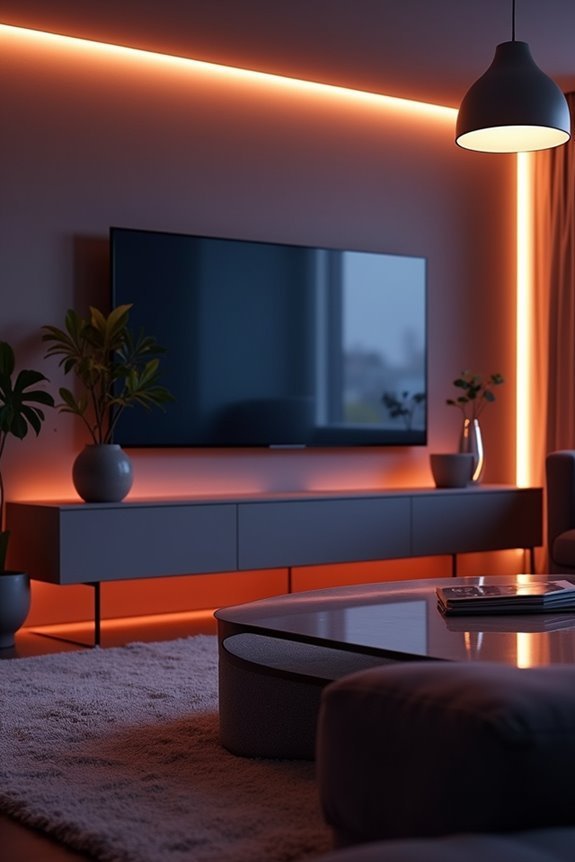
Once you’ve got your Govee lights talking to Apple Home, here’s the fun part—making them actually do stuff for you. I’m talking automations, my friend. Create a Morning Light routine that gradually brightens your bedroom, set up Movie Night scenes that dim everything perfectly, or trigger Temperature Alerts when things heat up. These automations make your setup more useful and functional. Through HOOBS, you’ll access these features smoothly, no complicated steps required. Your Govee lights can anticipate what you need before you ask. Want your lights reacting to your schedule, your presence, your mood? That’s the moment where Apple Home and Govee stop being separate gadgets and become your personal lighting assistant.
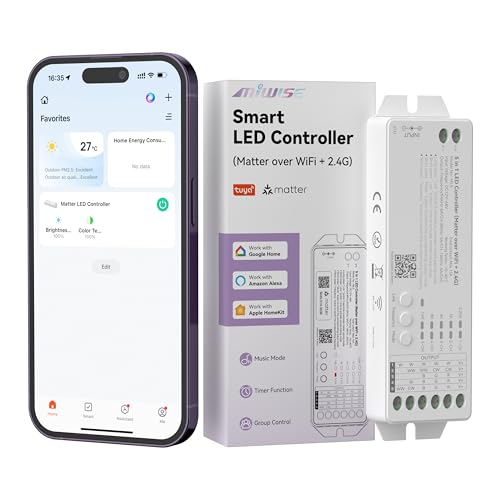
5-in-1 PWM LED Controller:Compatible with a vast range of LED strip lights,including single color,CCT,RGB,RGBW,and RGBCCT COB LED strip light varieties.This dimmable controller delivers a robust 15A max output,operating efficiently on 12V-48V DC power.Please note: It is not compatible with SPI or addressable LED strips with IC chips.Always verify your strip type before purchase for perfect performance

Diverse Lighting Effects: 100+ preset scene modes on Govee Home APP, you can curate the ideal lighting to fit any even more vast suite of preset scenes to suit any holiday, entertainment, and Photography lighting needs occasion. Enjoy your lights using easy voice control with Matter, or Alexa and Google Assistant.

BRIGHT, IMMERSIVE LIGHTING WITH TRUE COLOR PERFORMANCE – Transform any room with the LIFX 20ft Smart LED Lightstrip delivering up to 1000 lumens of vivid brightness. Enjoy rich RGB colors and tunable white light from warm to cool for both ambiance and everyday lighting. Unlike dim accent strips, this lightstrip is bright enough to illuminate kitchens, living rooms, bedrooms, and gaming setups while maintaining accurate, saturated colors and smooth dimming without flicker.